14 tips on how to make a presentation interactive [2026]
Written by Mary Mattingly
Fed up with colleagues and clients tuning out two slides into your deck? You're not imagining it — attention is genuinely harder to hold in 2026 than it was even a couple of years ago, especially in a hybrid meeting where half the audience is one tab away from email.
The good news: the tools to fix this have gotten dramatically better. AI now handles most of the busywork of building interactive layouts, and "interactive presentation" no longer means "PowerPoint with a clicky button." It can mean a fully designed, no-code experience built with cloud-based presentation software—online platforms that let you create, store, and share presentations virtually, making collaboration and access seamless from anywhere.
This guide walks through 14 proven tips for turning a passive presentation into something your audience actually engages with — plus the AI shortcuts that This guide walks through 14 proven tips for turning a passive presentation into something your audience actually engages with, plus the AI shortcuts that make most of them five-minute jobs. There are also other platforms and tools available for making interactive presentations, offering a range of features and sharing options beyond those discussed here. most of them five-minute jobs.
What is an interactive presentation?
An interactive presentation is one that invites your audience to participate rather than just watch. That can mean live polls, embedded video, clickable infographics, real-time Q&A, or AI-generated layouts that adapt to what the audience cares about. Anything that turns a one-way broadcast into a two-way exchange counts. To make an interactive presentation, you can create engaging interactive content by incorporating clickable elements, such as buttons and links, and enabling non-linear navigation so viewers can explore topics in any order they choose.
Forget the "PowerPoint with bullet points" mental model, think TED Talks, with the audience as collaborators rather than spectators, where modern presentation design and compelling visual content help create engaging experiences.
Why interactive presentations matter in 2026
Three reasons interactive presentations have shifted from "nice to have" to "expected":
1. Attention is shorter, not longer. Static, text-heavy slides lose people fast — especially in remote meetings where there's nothing stopping them from multitasking. Visual movement, polls, and prompts pull eyes back to the screen.
2. Engagement isn't optional anymore. Whether you're presenting to a sales prospect, an internal team, or a customer training audience, expectations have caught up to consumer media. People are used to short-form video pacing and personalized feeds. A 40-slide linear deck feels archaic.
3. Comprehension scales with participation. When your audience can vote, click through a diagram, or answer a quick check-in, you get real-time feedback on what's landing — and they retain more, because they helped construct the meaning.
Now, on to the tips.
Top 14 ways to make your presentations interactive
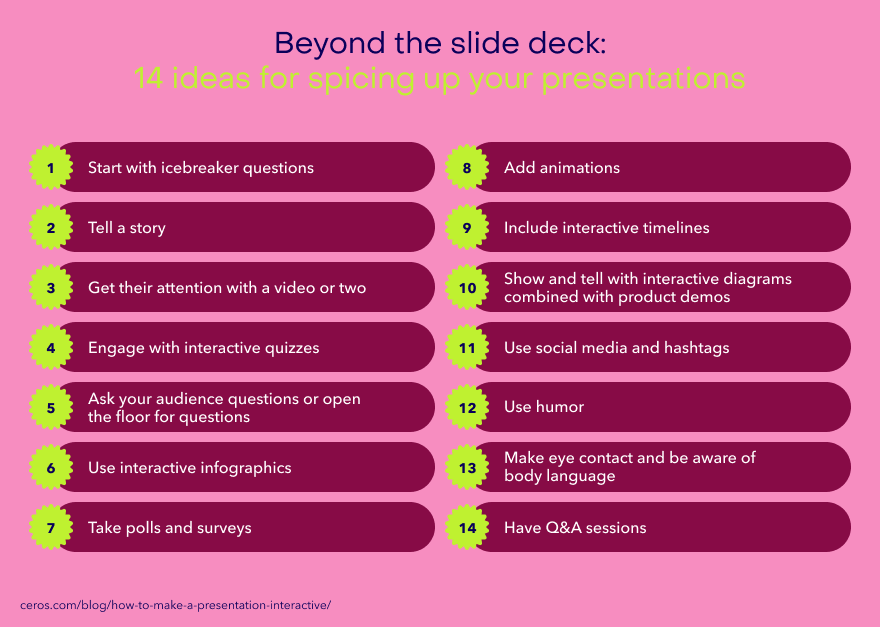
Today we'll focus on 14 of our favorite and most effective interactive presentation ideas, but there are many more.
Let’s dive in.
1. Start with icebreaker questions
The first 60 seconds of a presentation set the tone for the next 60 minutes. Instead of opening with the agenda, open with a question your audience can answer in chat, in a poll, or out loud.
Some that work for B2B audiences:
- What's the best piece of career advice you've ever received?
- What's your #lifehack of the week?
- What's your go-to productivity hack when you're feeling overwhelmed?
- What's your favorite question to ask during a job interview?
For smaller groups, lightweight games (two truths and a lie, trivia about the company, a "guess the customer" round) raise energy fast. For 100+ audiences, run a single quick poll instead — anonymous, one click, results visible.
The goal is to flip the room from passive listening into active participation before you've started the substantive content.
2. Tell a story
Storytelling is still the single most reliable engagement device in any presentation. Harvard Business Publishing notes that "storytelling forges connections among people, and between people and ideas" — and that's especially true when you're translating dry information into something memorable.
Two practical applications:
- Open with a personal story that creates context for whatever you're about to teach. A 90-second story is worth ten bullet points.
- Wrap data in narrative. Instead of presenting "Q3 revenue grew 18%," tell the story of why it grew — the customer who finally signed, the product change that unlocked the segment. Numbers stick when they're attached to a protagonist.
3. Use video in your presentation
Video is the fastest way to break up a slide-heavy presentation and reset attention. According to a study published in Science Direct, participants reported being more engaged during video watching because it “elicited more emotions than texts.” Incorporating visuals, such as diagrams, GIFs, and multimedia elements, makes presentations more engaging and helps communicate ideas more effectively. That holds whether you’re embedding a 15-second product demo, a customer testimonial, or a punchy explainer.
A few practical notes for 2026:
- Keep clips short — ideally under 60 seconds inline. Save longer footage for "watch later" links.
- Native video on LinkedIn and short-form (TikTok, Reels, Shorts) format conventions have trained your audience to expect tight cuts and clear captions. Bring those production cues into your deck.
- For B2B audiences especially, a quick founder or customer clip beats a polished marketing video.
4. Include interactive quizzes
Quizzes do double duty: they wake people up, and they tell you what’s actually landing. Sprinkle two or three throughout the presentation rather than saving them all for the end. In addition to quizzes, you can add interactive elements like live polls and interactive questions to further boost engagement.
A few ways to use them:
- Diagnostic at the start: "What's your team's experience with [topic]?" lets you calibrate your language and depth.
- Knowledge check mid-deck: confirms a concept before you build on it.
- Retention quiz at the end: light, fun, and turns the closing minutes into a recap rather than a Q&A scramble.
Tip: No-code platforms like Ceros Flex let you build branching, scored quizzes directly into the presentation — no separate tool, no awkward “switch to this link” moment. AI can even generate quiz questions from your deck content automatically, making it easy to create interactive content without code.
5. Fostering interactions through questions
Beyond formal quizzes, ask your audience real questions throughout — and leave space for them to ask you back.
The "what if" question format works well:
- What if you were the customer here — what would you push back on?
- If you had to launch this in a single quarter, what would you cut?
- When you're scrolling through your social feed, what type of ad actually makes you stop?
Set the rule explicitly at the start: “Interrupt me whenever something doesn’t land.” Then mean it. The presenter who answers the third clarifying question without flinching wins more trust than the one with the cleaner slides, while keeping the audience involved throughout the presentation.
6. Use interactive infographics
Even with strong narration, dense data is hard to absorb verbally. An interactive infographic — one your audience can click into for detail, hover over for context, or filter by their own scenario — closes the comprehension gap fast. Including interactive charts as part of your interactive content can further enhance engagement and make complex data more accessible, drawing on proven interactive content examples like quizzes, calculators, and assessable visuals.
Here’s an example from Ceros’ gallery:
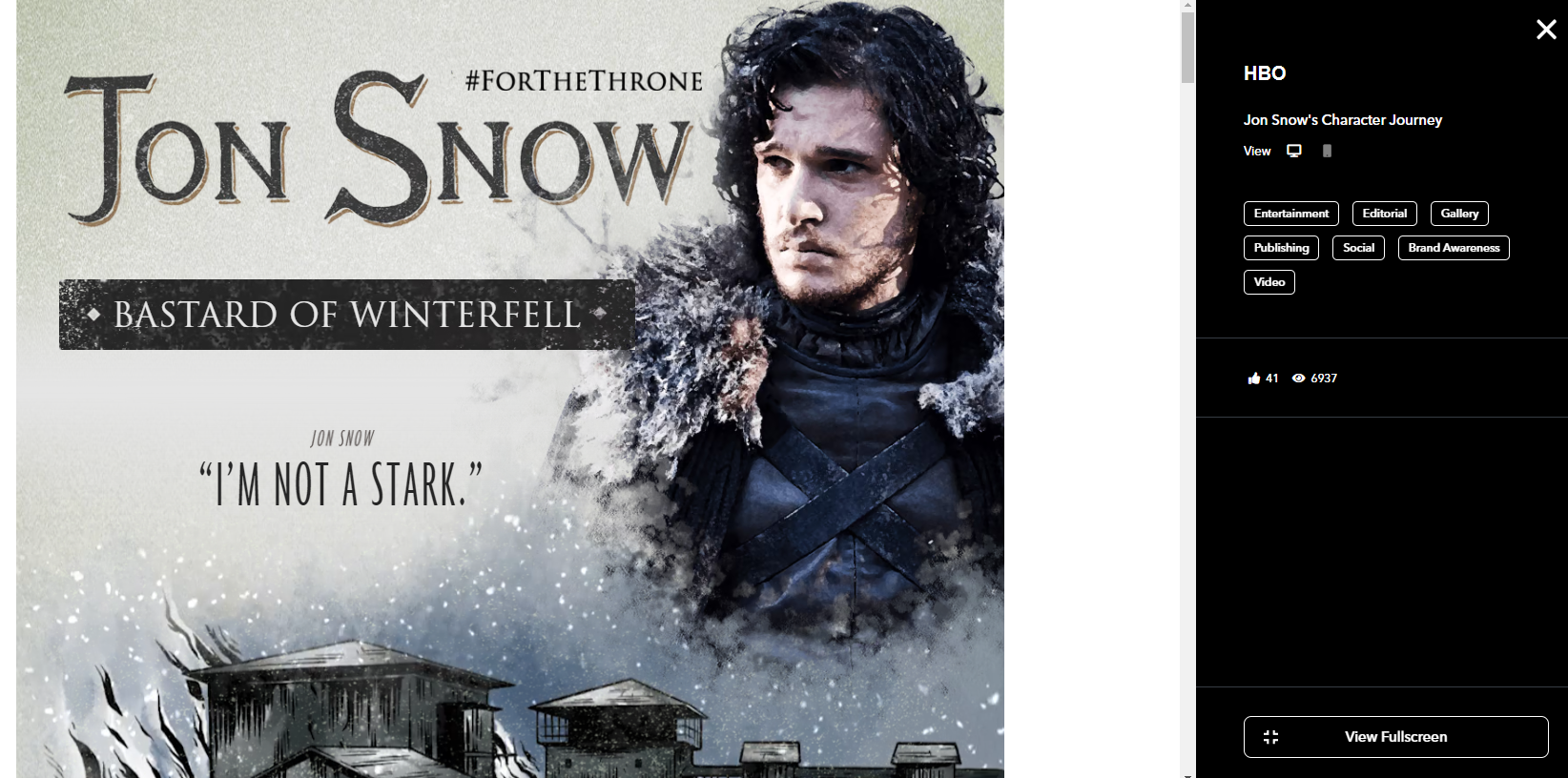
Done well, an interactive infographic replaces three or four explanatory slides with a single visual that the audience can explore at their own pace. Done poorly, it's a static chart with hover effects. Aim for the first.
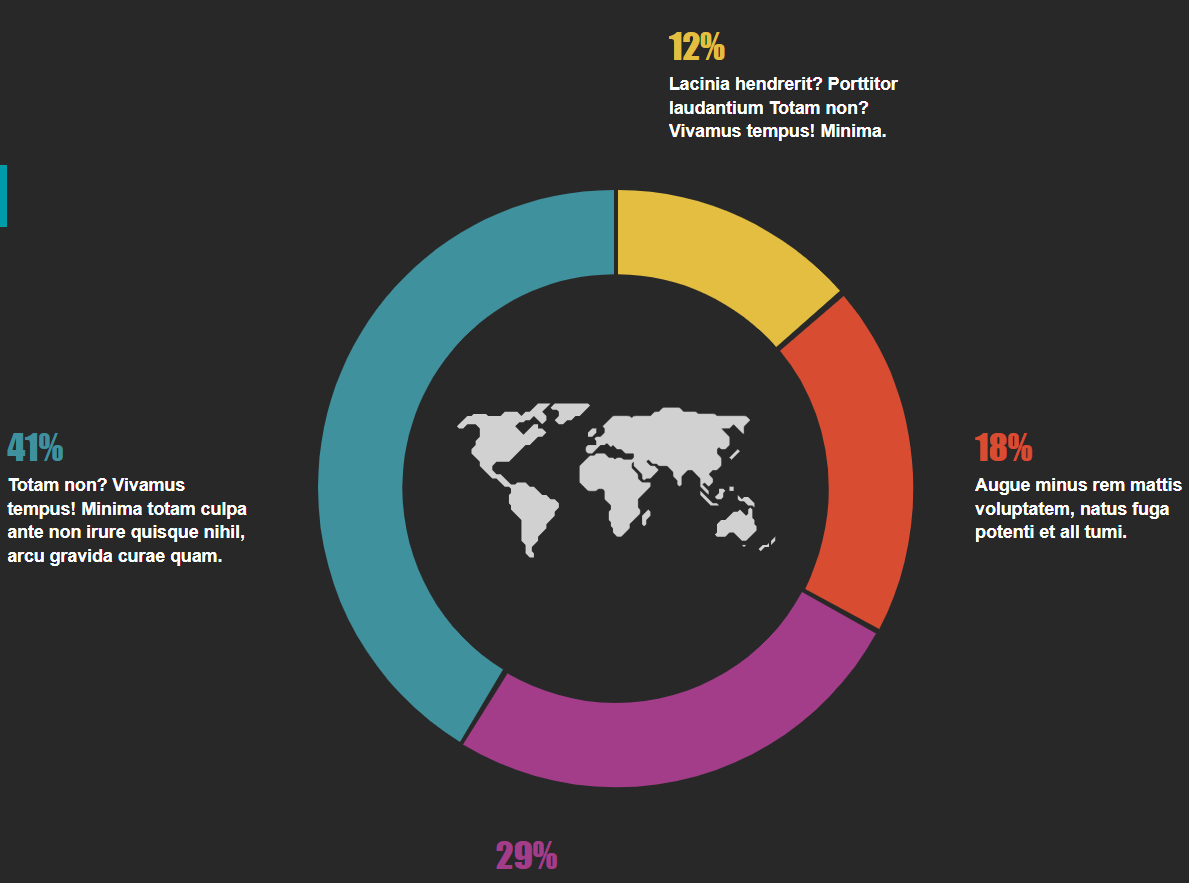
Image source: Ceros
Incorporating interactive charts and graphs can increase user participation by 25%.
7. Take polls and surveys
Live polls are the single highest-leverage interactive element in most B2B presentations. They take 30 seconds to deploy, give you instant data, and reliably pull attention back from drifting tabs.
Use them to:
- Gauge prior knowledge before a deep-dive
- Surface contrarian views you can address directly
- Crowdsource priorities ("which of these should we cover first?")
Close with commitment ("on a scale of 1–5, how confident are you in trying this next week?")
Anonymity matters—make sure your polling tool doesn’t surface individual responses unless that’s the explicit goal. Additionally, emoji reactions are an effective interactive tool, especially for webinars, helping to maintain engagement and provide instant feedback from your audience.
8. Add animations
Static slides feel flat next to the motion-heavy content people consume everywhere else. Thoughtful animation — a key statistic that fades in mid-sentence, a chart that builds bar by bar, a process diagram that animates left to right — keeps eyes moving with you instead of skimming ahead.
The bar to clear is “purposeful,” not “flashy.” Every transition should pace the audience’s attention; good presentation flow and thoughtful presentation design enhance the impact of animations by ensuring seamless movement and cohesive visuals that keep the audience engaged, not distracted.
Where AI helps: Flex AI can generate animated layouts from a written brief. Describe the section ("a three-step build of our pricing comparison"), and it ships a draft you can refine — significantly faster than tweaking PowerPoint timings by hand.
9. Include interactive timelines
Timelines turn abstract sequences (a roadmap, a process, a customer journey) into something visual and explorable. The interactive version adds context: enabling non-linear navigation and clickable elements for a more dynamic experience—clicking a milestone reveals a description, a screenshot, or a short video; hovering surfaces dates and owners.
Used well, an interactive timelineUsed well, an interactive timeline replaces the dreaded “let me walk you through 12 dates on a single slide” moment with something the audience actually engages with.replaces the dreaded "let me walk you through 12 dates on a single slide" moment with something the audience actually engages with.
10. Combine interactive diagrams with product demos
When you’re explaining how something complex works, the strongest pattern is diagram → demo → diagram. The diagram gives the mental model, and visual content makes the explanation more engaging; the demo grounds it in reality; returning to the diagram cements where the demo fits.
For technical sales especially, this beats either a pure slide deck or a pure live demo. The interactive diagram lets the audience click into the parts they care about — and the embedded demo proves the diagram isn't just marketing fiction.11. Use social media and hashtags
11. Use social channels as a live backchannel
The traditional "use a hashtag for your presentation" advice has weakened — Twitter/X-style live hashtags carry less weight in 2026 than they did in 2024. The replacement is LinkedIn comments and live event chat: a thread or session-specific channel that runs alongside the talk.
This works especially well for hybrid presentations where remote attendees would otherwise be silent. A single moderator surfacing the best comments to the room every 10 minutes turns the live chat from background noise into a real second voice.
12. Use humor
Humor lowers the room's defenses faster than almost anything else. The Management Library notes that humor "helps the audience relax and connect with the speaker and piques their interest" — and once that connection's established, people ask better questions, push back more constructively, and remember more.
A caveat: self-deprecating beats audience-deprecating, and topical beats generic. A specific, well-timed joke about your own product's quirks lands; a recycled meme rarely does.
13. Make eye contact and be aware of body language
Even in 2026, with all the production polish AI affords, the basics still matter. Look at the camera (or the audience), not at your notes. Move with intention rather than pacing. Let your hands actually mean something.
For remote presentations, this means a decent webcam at eye level, intentional pauses (your audience needs the silence to process), and resisting the urge to read directly from the slide content.
14. Have Q&A throughout, not ust at the end
End-of-presentation Q&A sessions are usually too late: the audience is tired, the clock is short, and the questions that would've sharpened the middle of the talk are no longer top of mind.
The fix: pause for two minutes of Q&A at the end of each major section. It feels less efficient on paper, and produces dramatically better presentations in practice.
Let AI do the heavy lifting
Most of the tips above used to require either a designer or a meaningful chunk of a Friday afternoon. They don’t anymore.
AI-assisted presentation tools—including Flex, Ceros’ interactive creative platform—can now:
- Generate a fully designed, interactive layout from a one-paragraph brief, starting from a blank canvas for custom design and non-linear storytelling
- Produce on-brand animations, transitions, and component variants without touching a timeline panel, leveraging advanced features like hotspot buttons, embedded content, and presenter view for streamlined delivery
- Suggest quiz questions, polls, and CTAs based on the deck’s actual content
- Create presentations with interactive elements and adapt the same source presentation into mobile-first, embed, and downloadable versions automatically
The right way to use this in 2026 isn’t “AI builds the deck for you” — it’s “AI handles the production work so you spend your time on the message and the structure.” That shift alone is what makes the 14 tips above realistic to actually do, instead of nice-to-have ideas you skip because of deadlines.

Mistakes to avoid when creating interactive presentations
A few traps the most experienced presenters still fall into:
- Not tailoring the presentation to the audience. Interactive elements work in proportion to how relevant they are. A poll your audience can't relate to is just a slow slide.
- Overloading slides. More interactivity isn't more engagement. One strong interaction beats three weak ones every time.
- Skipping the dry run. Polls fail. Embeds break. Walk through every interactive element on the actual hardware and network you'll present on, the day before.
- Forgetting clear instructions. If the audience is supposed to interact, tell them how — out loud, on screen, and (if remote) in chat.
- Interactive elements with no purpose. Every poll, quiz, and animation should grab attention, deepen comprehension, or surface useful data. If it doesn't do one of those, cut it.
- Over-relying on AI without editing. AI-generated layouts and quiz questions are a starting point, not a finished product. Read every word and review every component before it goes in front of an audience.
- Neglecting audience feedback. If half the room looks confused, address it. The plan was a guess; the room is the data.
How interactive presentation software can help
You can build all 14 of the tips above into Microsoft PowerPoint with enough effort, but in 2026 most teams don't — the gap between "PowerPoint with extras bolted on" and "interactive presentation built natively" has gotten too obvious.
Modern interactive content platforms like Ceros Flex handle the layout, animation, polls, embeds, and AI generation in one place. As cloud-based presentation software, these platforms let you create, store, and share presentations online, enabling easy collaboration, sharing via links, and access from anywhere without downloads. You start from a template, describe what you want, and ship a finished interactive deck—typically in a fraction of the time a comparable PowerPoint build would take, especially when you draw inspiration from interactive experiences in Ceros Inspire.
If you're evaluating tools, the honest decision criteria for 2026 are:
- Does it generate interactive layouts from a brief, or do you still hand-build everything?
- Does the output work natively on mobile, embed, and download — or do you have to recreate it for each surface?
- How much design skill does it actually require? (Real answer: should be zero for the first usable draft.)
Want to see how Flex handles all of the above? Try it today.
FAQs
What makes a presentation interactive? Any element that invites the audience to participate rather than passively watch — polls, embedded video, clickable infographics, AI-generated quizzes, real-time Q&A, branching navigation. The minimum bar is one interaction every 5–10 minutes.
Can AI make a presentation interactive? Yes, and it's now the fastest path. AI tools like Flex AI can generate interactive layouts, animations, and quiz questions from a brief description of your topic, then let you refine the result. This is a 2025–2026 capability that didn't reliably exist in earlier versions of these tools.
What's the best interactive presentation software in 2026? There's no single right answer — it depends on whether you need full design control (Ceros Flex), conversational AI generation (multiple options), or simple polling overlays on top of existing slides (built into most major platforms). For B2B teams shipping client-facing or internal presentations regularly, a no-code interactive platform with AI generation built in tends to win on both speed and output quality.
How long should an interactive presentation be? Same length as a non-interactive one — interactivity doesn't extend your audience's patience. Plan for the same time slot, just with a stronger ratio of audience participation to presenter monologue.
Do interactive presentations work for remote and hybrid audiences? Especially well. Remote attendees benefit most from interaction, because it's the only thing that pulls them back from other tabs. Polls, live chat, and embedded video are particularly effective in remote settings.